Usando servizos de localización
Location services in Ubuntu Touch allow apps to access your current location. Using this data, apps can offer turn-by-turn navigation, track your exercise paths, locate public transport near you, and more.
The location services built into Ubuntu Touch are designed to protect your privacy — you choose to permit or deny apps access to this data. Apps may only access your location data when the device screen is on and the app is in use.
Checking if location services are on
The Location Indicator is displayed whenever location services are on. Normally, this indicator will appear to be dark.

The Location Indicator, showing location on but not in use.
Se un aplicativo accede a datos de localización, o indicador de situación brilla.

The Location Indicator, showing location on and in use.
Acceso á configuración dos servizos de localización
Hai varias formas de acceder á configuración relacionadas cos servizos de localización en Ubuntu Touch.
Abrir configuración rápida de localización
O indicador de localización contén configuración rápida relacionadas cos servizos de localización, incluído un interruptor para activar ou desactivar os servizos.
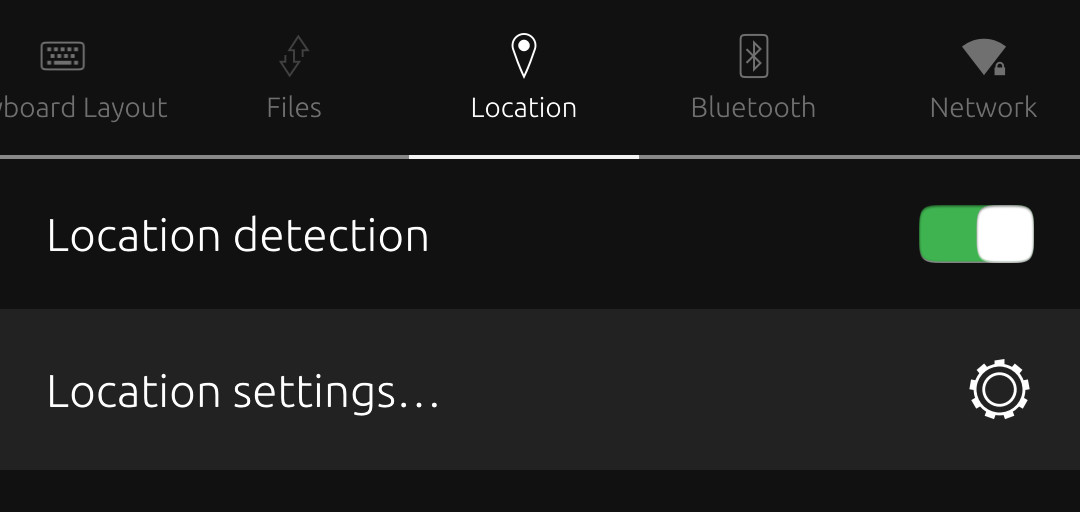
To access these settings, press the Location Indicator and pull down toward the bottom of the screen.
If location services are off, you can access the location quick settings by pressing on any other indicator and pulling down. Then, scroll through the icons at the top of the screen to find Location. Select «Location to open the quick settings.
Abra a configuración de localización no aplicativo da configuración
O aplicativo de configuración do sistema pode usarse para controlar os servizos de localización. Hai máis controis no aplicativo de configuración do sistema que no indicador de situación.
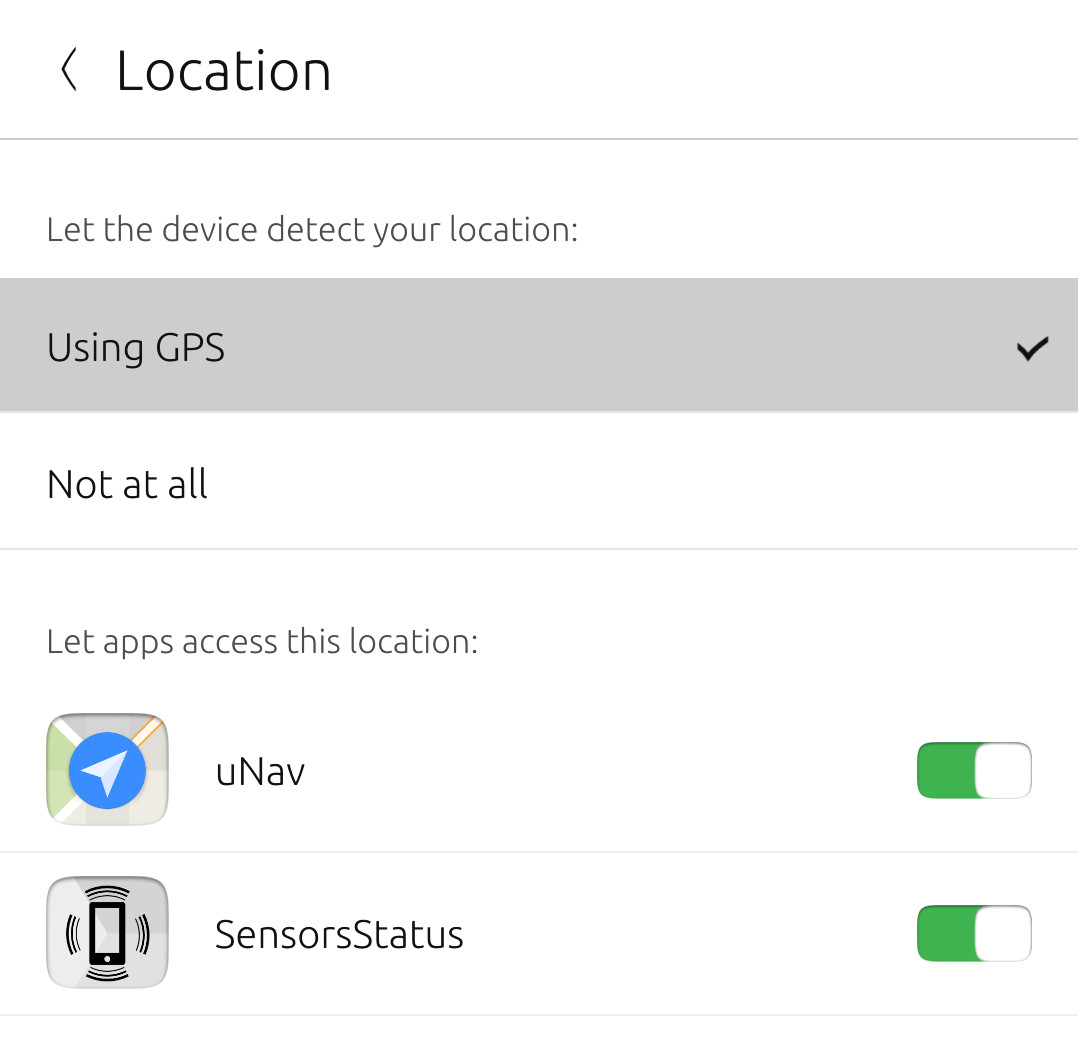
Hai dous xeitos de acceder aos controis dos servizos de localización no aplicativo de configuración do sistema.
Configuración rápida
Open location quick settings, then select Location settings....
Aplicativo de configuración do sistema
Launch the System Settings app. Select Security & Privacy, then select Location.
Activación ou desactivación dos servizos de localización
If location services are on, apps you have granted access to your location data may request your current location. Location services are on by default on Ubuntu Touch.
Se os servizos de localización están desactivados, os aplicativos non poderán acceder á túa situación actual.
There are several ways to turn on or off location services in Ubuntu Touch.
Configuración rápida
Open location quick settings.
Select the Location detection switch to turn on or off location services.
Aplicativo de configuración do sistema
Open location settings in the settings app.
Under Let the device detect your location:, select the appropriate option:
Using GPSturns on location services.Not at allturns off location services.
Permitindo que os aplicativos accedan aos datos de localización
Ubuntu Touch permítelle ou denegar o acceso dos aplicativos aos seus datos de localización. Esta decisión preséntase a primeira vez que o aplicativo intenta acceder á túa situación actual. Podes cambiar a túa decisión máis tarde.
Un aplicativo mostrará a solicitude de permiso de localización a primeira vez que intenta acceder á súa situación actual.
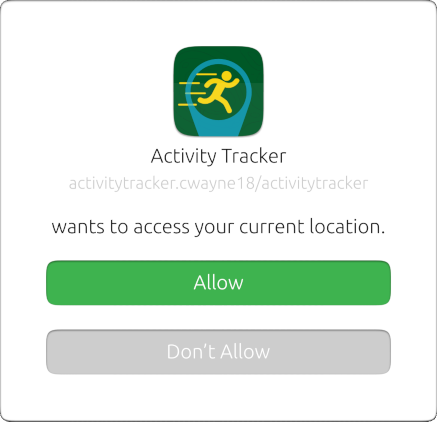
Select Allow to give the app access to your current location.
Select Don't Allow to deny the app access to your current location.
Some app features may not work correctly if you select Don't Allow.
Cambiando os seus permisos
You can change your decision to allow an app access to your location data. This is useful if you have granted an app access to your location but would now like to revoke it, or if you denied access but would like to grant access again.
Hai varios xeitos de atopar estes controis.
Ubicación
Open location settings in the settings app.
All apps that have requested access to your location are listed under Let apps access this location:.
Toggle the switch next to an app «on» to allow it to access your location data.
Toggle the switch «off» to deny access.
Parámetros de permisos dos aplicativos
Launch the System Settings app.
Select Security & Privacy, then select App permissions, followed by Location.
All of the apps that have requested access to your location are listed.
Toggle the switch next to an app «on» to allow it to access your location data.
Toggle the switch «off» to deny access.
Utilizando os aplicativos cos servizos de localización
Os aplicativos poderán acceder á túa situación actual despois de que lles concedan acceso aos datos de situación. Non obstante, hai algunhas cousas que hai que ter en conta ao usar aplicativos con servizos de localización.
Tempo para a primeira solución
A «fix» is a data point generated by GPS hardware that contains its current location and the expected accuracy of that location. GPS hardware is rated by how long it takes to return one of these data points after the device is activated. This rating is called «Time To First Fix,» or TTFF.
A device with a mobile data connection should take one to four minutes to receive its first fix. If location services have not been used for a long time and the device does not have a mobile data connection, the first fix can take up to an hour. To prevent this from causing problems for you, follow these instructions:
Advertencia
Do not leave your device in direct sunlight. (The heat can damage the device.)
Turn off
Lock when idlein the Battery settingsDownload an app which uses location services and use it to start accessing location data.
Leave your device near a window, but out of direct sunlight.
(Turn the screen brightness down to reduce energy consumption.)
After 20-60 minutes, your device should display your current location.
You can now close the app and turn on Lock when idle.
Future attempts to aquire your location should now take 1-4 minutes.
Suspensión do aplicativo
Apps are suspended whenever not in the foreground, or when the device is locked. When an app is suspended, it cannot receive location data. For this reason, apps will not be able to track your location whenever they are not in use or the device is locked.