Shell access via ADB
您可以將 UBports 設備置於開發人員模式,並從 PC 上存取 Bash shell。 這對於調試或更高級的 shell 使用非常有用。
安裝 ADB
首先,您需要在電腦上安裝 ADB。
On Ubuntu:
sudo apt install android-tools-adb
On Fedora:
sudo dnf install android-tools
And on macOS with Homebrew:
brew install android-platform-tools
對於 Windows,只需從這裡獲取 「命令行工具包 <https://developer.android.com/studio/index.html#downloads>」_。
啟用開發人員模式
接下來,您需要打開開發人員模式。
將您的裝置設定為開發者模式(設定-關於-開發者模式-選中該框以將其打開)
重新啟動您的裝置
Plug the device into a computer with ADB installed
Open a terminal and run
adb devices.
備註
當你完成使用 shell 時,最好再次關閉開發者模式。
If there’s a device in the list here (The command doesn’t print 「List of devices attached」 and a blank line), you are able to use ADB. If not, continue to the next section.
Authorize access to the device
When using adb for the first time on a computer, the following dialog will appear when you unlock the screen.
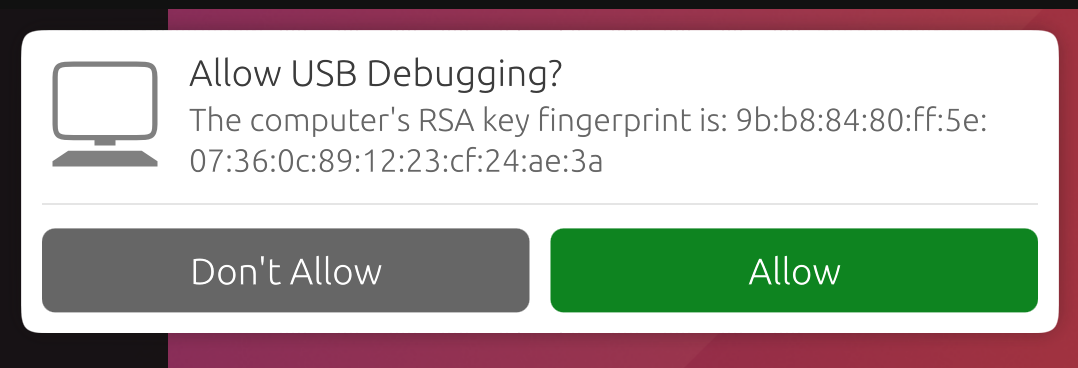
This ensures that ADB commands will not work on a new computer unless user unlock the phone and acknowledge the dialog. Selecting 「Allow」 will make the ADB commands work for this session, and will also remember this computer so that it won’t prompt you again in the future.
備註
If you’re bringing up a port and you require ADB access before the UI is available, you can disable this protection by editing /etc/default/adbd and change ADBD_SECURE=1 to ADBD_SECURE=0.
Frequently used ADB commands
ADB shell commands:
adb shell — Gives you access to the Linux command-line shell on your device.
adb shell [command] — Runs the specified shell command on your device.
Additional Adb commands:
adb push [source] [destination] — Pushes a file from your computer to your device.
adb pull [destination] [source] — Pulls a file from your device to your computer.
For more ADB commands, refer to the official documentation.
添加硬體 ID
ADB 並不總是知道您的電腦上應該或不應該與之通訊的裝置。 您可以手動添加不知道如何通話的裝置。
Just run the command for your selected device if it’s below. Then, run adb kill-server followed by the command you were initially trying to run.
Fairphone 2:
printf "0x2ae5 \n" >> ~/.android/adb_usb.ini
OnePlus One:
printf "0x9d17 \n" >> ~/.android/adb_usb.ini