Shell access via ADB
您可以将您的 UBports 设备置于开发者模式并从 PC 访问 Bash Shell。这对调试和高级使用非常有帮助。
安装 ADB
首先,您需要在您的计算机上安装 ADB。
On Ubuntu:
sudo apt install android-tools-adb
On Fedora:
sudo dnf install android-tools
And on macOS with Homebrew:
brew install android-platform-tools
For Windows, grab the command-line tools only package from developer.android.com.
启用开发者模式
接下来,您需要启用开发者模式。
将您的设备置于开发者模式(设置 - 关于 - 开发者模式 - 选中此框将其打开)
重启你的设备
Plug the device into a computer with ADB installed
打开终端,运行
adb devices。
备注
当您使用完 shell 之后,最好关闭开发者模式。
If there’s a device in the list here (The command doesn’t print “List of devices attached” and a blank line), you are able to use ADB. If not, continue to the next section.
Authorize access to the device
When using adb for the first time on a computer, the following dialog will appear when you unlock the screen.
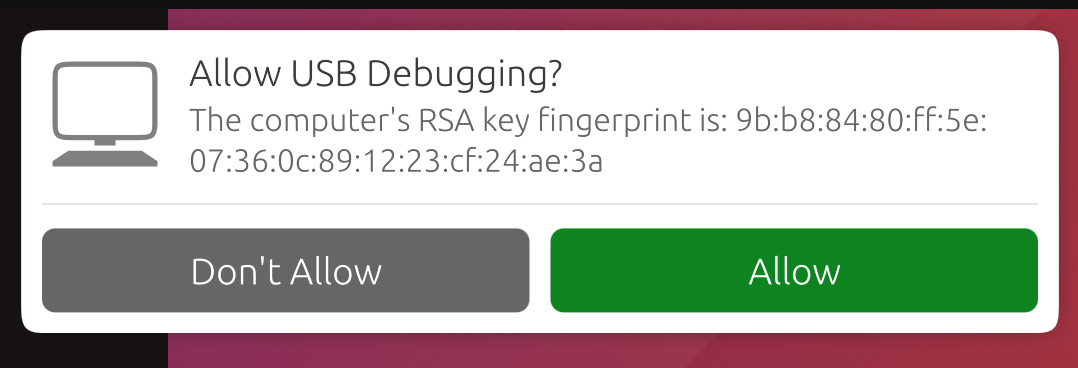
This ensures that ADB commands will not work on a new computer unless user unlock the phone and acknowledge the dialog. Selecting “Allow” will make the ADB commands work for this session, and will also remember this computer so that it won’t prompt you again in the future.
备注
If you’re bringing up a port and you require ADB access before the UI is available, you can disable this protection by editing /etc/default/adbd and change ADBD_SECURE=1 to ADBD_SECURE=0.
Frequently used ADB commands
ADB shell commands:
adb shell — Gives you access to the Linux command-line shell on your device.
adb shell [command] — Runs the specified shell command on your device.
Additional Adb commands:
adb push [source] [destination] — Pushes a file from your computer to your device.
adb pull [destination] [source] — Pulls a file from your device to your computer.
For more ADB commands, refer to the official documentation.
添加硬件 ID
ADB 并不是总知道在您计算机上应不应该与设备进行通信。您应该手动添加不知道如何通信的设备。
如果下面有您所选的设备,请运行此命令。然后运行 adb kill-server 然后执行你最初所要执行的命令。
Fairphone 2:
printf "0x2ae5 \n" >> ~/.android/adb_usb.ini
OnePlus One:
printf "0x9d17 \n" >> ~/.android/adb_usb.ini